


If the applications require a virtual axis (one which has no associated hardware) then the user can add this.
Eeither by and .
-
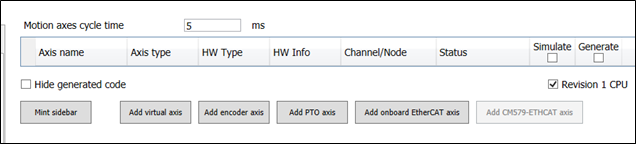
Opening the “Motion Solution Wizard” object (by doubling clicking on it).
-
Clicking on the [Add virtual axis] button on the bottom of the page.
-
Open the“Motion Solution Wizard” object by doubling clicking on it.
-
Click on the [Add virtual axis] button on the bottom of the page.
-
Alternatively, right click on the “Motion Solution Wizard ”object and by selecting “Add object” option to add the axis.
-
After adding a virtual axis, the user can find it object under the “Motion Solution Wizard ”. Users can double click on the added virtual axis object to access the settings page and configure it.
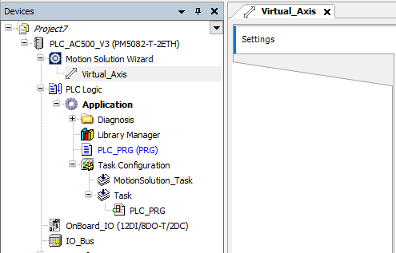
Settings here are the same as the motion axis and details for how to configure the parameters, refer to the previous chapters.