


On this tab of the generic device editor, you define the connection between CODESYS and the device on which your application(s) should run. This includes security settings such as encrypted communication and signing.
If you prefer the classic mode of display for the dialog, then select it in the CODESYS “Options” in the “Device editor” category).
You select a gateway and a target device from the list boxes. The possible selections depend on the entries in the “Manage Gateways” and “Manage Favorite Devices” dialogs (see the “Gateway” menu).
You can also specify the target directly with the IP address (example: "192.168.101.109"), device address (example: "[056D]"), or device name (example: "MyDevice"). After the device is entered, CODESYS searches for the device in the network of the gateway.
The option of searching by device name requires unique device names in the network.
The solid circle on the lower right corner of the gateway symbol provides information about the connection status:
-
Red: CODESYS cannot establish the connection.
-
Green: The connection is established.
-
Black: The connection status is unknown.
Some communication protocols allow regular checking of the gateway so that the status cannot be displayed.
Clicking the solid circle of the target device starts a network scan for the device. This works only if the network is not already being scanned.
|
“Scan Network” |
This button opens the “Select Device” dialog. It lists all configured gateways with the associated devices. You can select one target device from this list. If the name of the selected device is unique, then the name will be used in the connection settings. Otherwise, the unique device address is applied. For details about this dialog, see the description of the classic view below. Option: Hide non-matching devices, filter by Target ID:
|
|
“Gateway ” |
This menu includes the following commands:
|
|
“Device” |
This menu includes the following commands:
|
 : The display is limited on the devices that have the same target ID as the current
device configured in the project.
: The display is limited on the devices that have the same target ID as the current
device configured in the project. : All available devices in the network are displayed. Double-clicking the entry of
a device, which has a different target system ID than the device configured in the
project, opens a dialog box. This dialog box allows you to update the device description
of the device in the project to the one matching the selected device. Note: This kind
of update is possible only with devices which have different IDs, not for those which
only have different versions. The update also requires that the device description
is already installed in the repository.
: All available devices in the network are displayed. Double-clicking the entry of
a device, which has a different target system ID than the device configured in the
project, opens a dialog box. This dialog box allows you to update the device description
of the device in the project to the one matching the selected device. Note: This kind
of update is possible only with devices which have different IDs, not for those which
only have different versions. The update also requires that the device description
is already installed in the repository.|
When you select a new communication policy in this dialog, the configuration in the runtime system is changed. |
|
|
“Communication Settings” |
|
|
“Current policy” |
Shows the currently selected policy for the encryption of communication with the device |
|
“New policy” |
List box for the new policy for encryption
|
|
“Code Signing” |
|
|
“Current policy” |
Display of the code signing policy which is currently set in the runtime system |
|
“New policy” |
|
|
“Device User Management” |
|
|
“Current policy” |
Shows the currently selected policy for user management |
|
“New policy” |
|
|
“Allow anonymous login” |
|
|
The runtime system password policy configured here is already checked in advance in the programming system when the password for a new device user is entered or when the existing password of a device user is changed. |
|
|
“Password policy is active” |
“Password settings”
The following rules for the password always apply, even when the rules are partially or completely disabled:
|
|
“Login lock is active” |
“Login lock settings”
|
Communication Settings - Classic Mode
In the CODESYS options, you can activate the classic mode of the dialog (“Tools Options”, "Device Editor" category).
|
“Select the network path to the controller” |
Gateway channel for the connection. Select the channel from the lower part of the view. |
|
Left side of view |
Tree structure of the configured gateway channels with the connected devices in the local network: 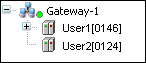 Note: CODESYS saves these entries on the local system, not in the project. The device entries are preceded by a device symbol ( Click “Scan Network” to refresh the list. Note: If you created the first project on the local system, then the local gateway is listed as an entry in the tree by default. CODESYS starts this gateway automatically on system boot. The solid circle on the lower right corner of the gateway symbol provides information about the connection status:
Each of the device entries in the tree consists of a symbol followed by the “Device name”> [“Device address”]. On the right side of the view, you also see the “Target ID”, “Target Name”, “Target Type, Target Vendor”, and “Target Version”. |
|
Right side of view |
Information about the gateway channel of device selected on the left side of the view. When a gateway channel is selected in the left view, the following information is displayed: “Device name”, “IP address”, “Port”, “Driver” When a device is selected in the left view, the following information is displayed (depending of the device): “Device name”, “Device address”, “Number of channels”, “Block driver”, “Serial number”, “Encrypted communication”, “Target vendor”, “Target ID”, “Target name”, “Target type”,“ Target version”. |
 ). Entries with a target ID that are different from those currently configured in
the project are displayed in gray.
). Entries with a target ID that are different from those currently configured in
the project are displayed in gray. 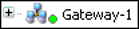
|
“Filter” |
You can reduce the displayed list of devices that have the same “Target ID” as the current device configured in the project. |
|
“Sorting order” |
You can sort the list by “Name” or “Device Address” in alphabetical or ascending order. |
|
“Set Active Path” |
The command sets the selected communications channel as active. Double-clicking the entry in the channel tree achieves the same result. |
|
“Add Gateway” |
The command opens the “Gateway” dialog where you can define a gateway that CODESYS should add to the current configuration. |
|
“Add Device” |
The command opens the “Add Device” dialog. Here you can manually define a device that is to be inserted under the gateway entry currently selected in the tree. Note the functionality of “Scan Network” as well. |
|
“Scan Network” |
The command starts a search for available devices in the local network. The configuration tree of the gateway is refreshed accordingly. |
|
“Scan for Device by Address” |
The command searches the network for devices with a unique address as given in the configuration tree. CODESYS displays the detected devices with the given address below the gateway. The search always applies to the devices below the selected gateway or below the selected entry. |
|
“Scan for Device by Name” |
The command searches the network for devices with the same name as given in the configuration tree. Capitalization is ignored. CODESYS displays the detected devices below the gateway with the given name together with its unique device address. The search always applies to the devices below the selected gateway or below the selected entry. |
|
“Scan for Device by IP Address” |
The command searches the network for devices with a unique IP address as given in the configuration tree. CODESYS displays the detected devices with the given address below the gateway together with its name. The search always applies to the devices below the selected gateway or below the selected entry. |
|
“Send Echo Service” |
CODESYS sends five echo services to the controller. These are used to test the network connection, similar to the ping function. The services are sent first without a payload and then with a payload. The scope of the payload depends on the communication buffer of the PLC. A message view opens with information about the average echo service delay and the scope of the sent payload. |
|
“Delete Selected Device” |
The command deletes the selected device from the channel tree. |
|
“Edit Gateway” |
The command opens the “Gateway” dialog for editing the settings for the selected gateway. |
|
“Configure the Local Gateway” |
The command opens a dialog for configuring a local gateway. This provides an alternative
to manually editing the |
|
“Don't store communication settings in project” |
|
|
“Confirmed Online Mode” |
|