


Configuration of communication parameters
To set up communication between the PC and the PLC, e.g., for downloading the compiled program, the communication parameters must be configured.
The IP address of the PC must be in the same class as the IP address of the CPU.
The factory IP address of the CPU is 192.168.0.10.
The IP address of the PC should be 192.168.0.X (avoid X = 10 in order to prevent an address conflict).
The subnet mask should be 255.255.255.0.
Changing of the IP address
-
Open the Windows Control Panel. Click “Network Status Network and Sharing Center”.
-
Select “Change adapter settings”.
When using existing network with multiple devices, network rules must be observed or a system administrator consulted.
-
Right-click “Local Area Connection (Ethernet)” and select [Properties].
-
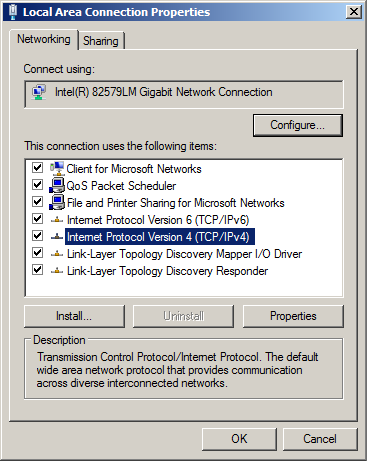
Double-click “Internet Protocol Version 4 (TCP/IPv4)”.
-
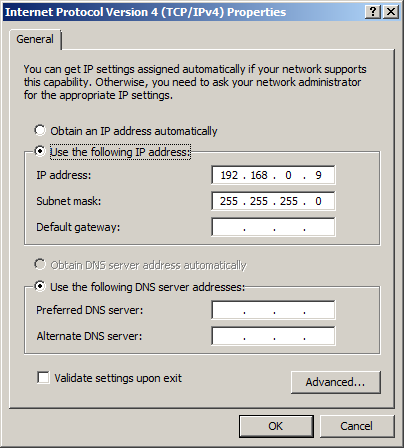
Enter the required IP address and subnet mask.
Configuration of the communication gateway
CPU and PC are connected with an Ethernet cable.
-
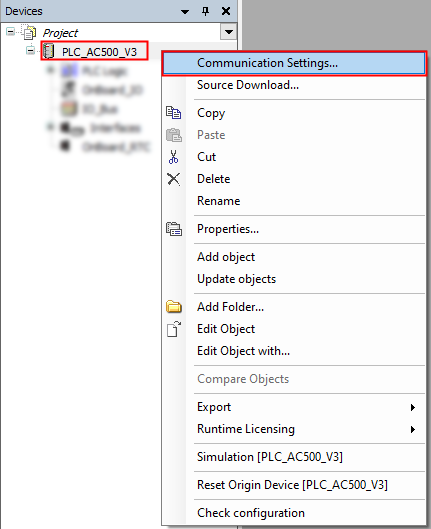
In the Automation Builder device tree right-click “PLC_AC500_V3”.
-
Select “Communication Settings”.
-
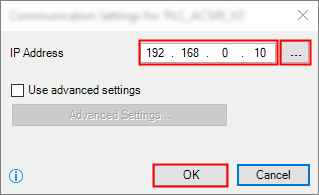
Keep the default value in the IP address of the CPU or type in the current IP address, if differs.
The standard (default) IP address of the port ETH1 is: 192.168.0.10
-
Select [OK] to implement the IP address.
Network scan
If multiple CPUs are present in the network, proceed as follows.
-
Right-click “PLC_AC500_V3” in the device tree.
-
Select “Communication Settings”.
-
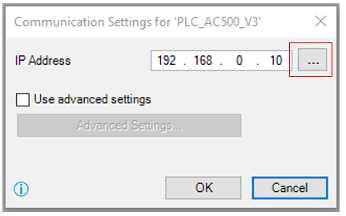
Select “...”.
New window “Communication Settings” opens.
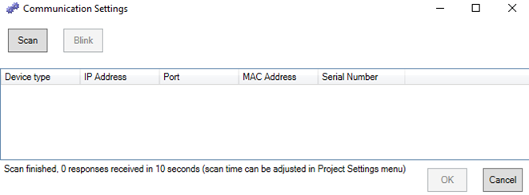
Click “Scan”.
The results will appear in this field.
-
Select the CPU in the field and select [OK] to implement the needed communications gateway.
Checking of the communication settings
If communications settings need to be checked or if additional information about the current selected CPU is required, proceed as follows.
-
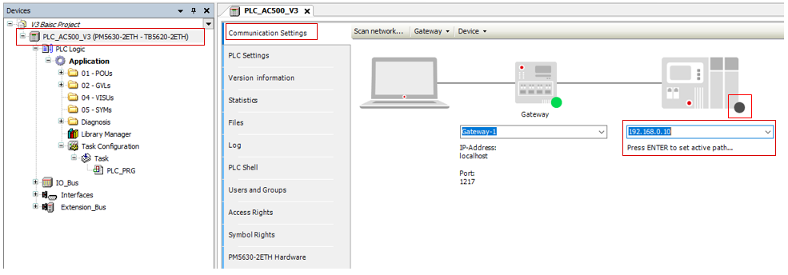
Double-click “PLC_AC500_V3” in the device tree.
-
Select “Communication Settings”.
The selected IP address is shown.
-
If the IP address is not visible, enter the IP address manually.
-
To test the connection and/or to see the CPU information press [Enter] or click on the black dot next to the PLC figure.