


The firmware of AC500 communication interface modules can be updated using the IP configuration tool.
For this purpose, the IP configuration tool must be used as a stand-alone variant.
⮫ “Stand-alone installation of the IP configuration tool”
It is not possible to perform a firmware update from Automation Builder.
For PROFINET communication interface modules, firmware updates are supported only for devices with firmware version ³ 3.3.3.
Requirements:
Before the firmware update
-
Ensure a fast and stable network connection.
-
Close all unused applications on the executing PC.
-
Stop communication between the AC500 PLC and the communication interface module that is to be updated.
During the firmware update
-
Do not close the IP configuration tool.
-
Do not open Automation Builder software or any other application.
-
Do not switch off the communication interface module that is to be updated.
-
Do not disconnect the Ethernet connection of the communication interface module or the executing PC.
The firmware update stops the operation of the affected device(s). The device(s) become unresponsive for 1 - 2 minutes.
Procedure:
-
Start the IP configuration tool stand-alone (.exe).
-
Perform a firmware identification with IP-Configuration Tool.
-
Select the devices to be updated from the list and click [Scan] to start the scan process.
Multiple devices can be selected using the “Ctrl” key. Ensure that only devices of the same protocol are selected at one time. Otherwise, the firmware update fails.
-
If the “NPcap” driver installation is required, there is a message including a download link in the IP-Configuration dialog.

Click the displayed link ⮫ https://nmap.org/download.html and download the latest version of the npcap-X.X.exe file.
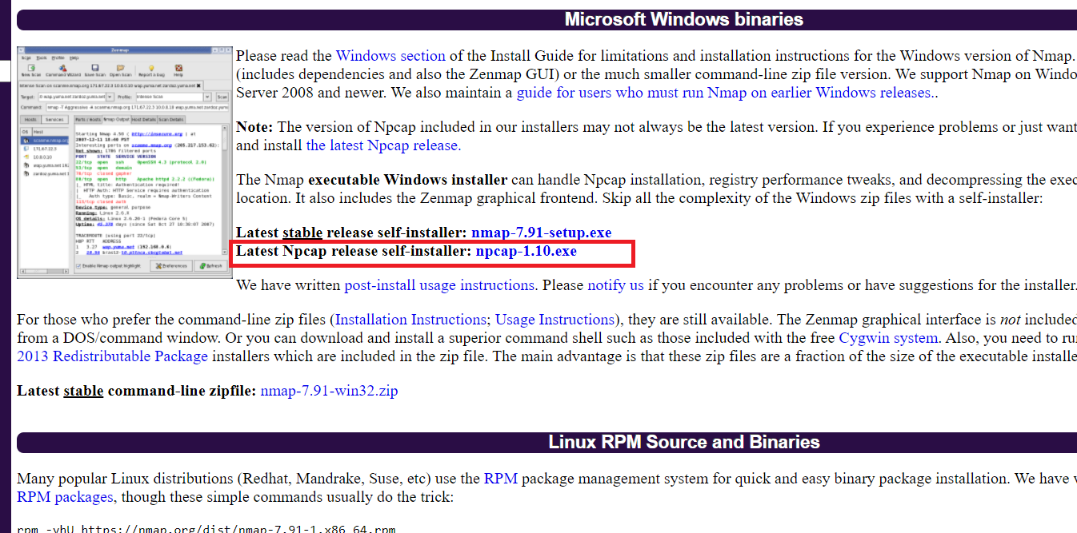
After the download, execute the file as administrator and restart the scan process.
The scanned devices are listed.
-
Click [Update Firmware] to start the firmware update for the selected devices.
-
For CI50x, CI51x and CI52x devices, a signature check is started. Select the appropriate firmware update file (*.bin) for the device(s). E.g.: C:\AC500\AC500_CI52x_Firmware_V3.2.13.bin.
After a successful signature check, the firmware file (*.bin) and the corresponding signature file (*.bin.sig) are transferred to the device. The transfer can take up to 3 minutes.
If the signature check fails, verify the availability of the *.bin file and the *bin.sig file.
-
A status check is performed automatically. A device reboot is performed. A second status check is performed automatically.
After the firmware update, all outputs of the updated device(s) are set to '0'.
-
After a successful firmware update, the update status or the new firmware version is displayed in the “FW Version” field.
If the “FW Version” field is empty, a connection error between the device and the executing PC may exist.

If the firmware update fails, perform the following actions.
-
Check the requirements for the update procedure.
⮫ “Firmware update for communication interface modules with the IP configuration tool”
-
Check the troubleshooting hints.
-
Perform a network scan and repeat the update.
-
If the error persists, power cycle the device and try the update again.
-